Belle Hunt
Control CaptionKit from your Stream Deck using Bitfocus Companion
Bring CaptionKit into your production workflow with Stream Deck controls, one-touch actions, and live status feedback.
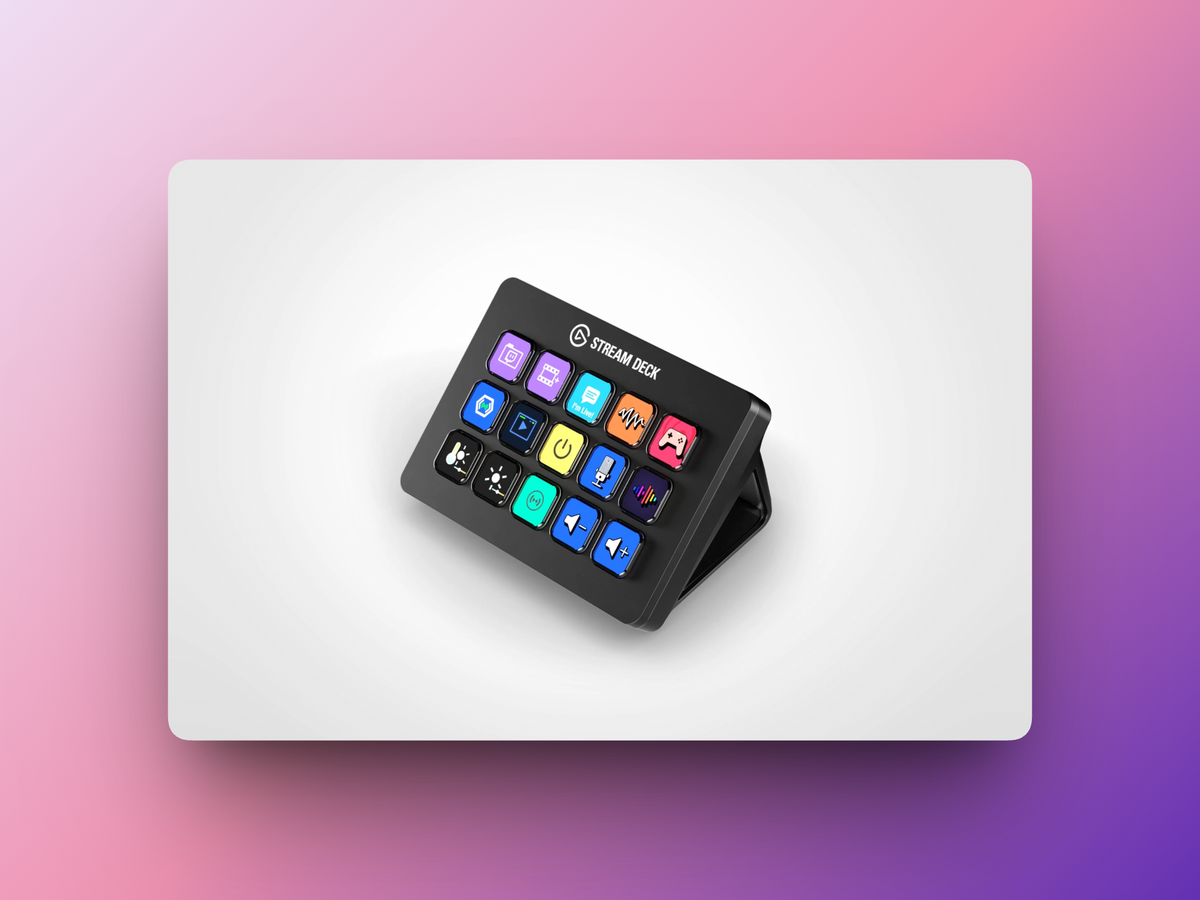
If you're already using Bitfocus Companion to run parts of your service or event, you can bring CaptionKit into the same workflow.
Companion is widely used by production teams to connect tools like Stream Deck with presentation, broadcast and AV software, giving you quick access to the controls you need without constantly switching between applications.
With the CaptionKit Companion module, you can trigger CaptionKit actions directly from Companion and keep your caption controls alongside the rest of your production setup.
Caption controls at your fingertips
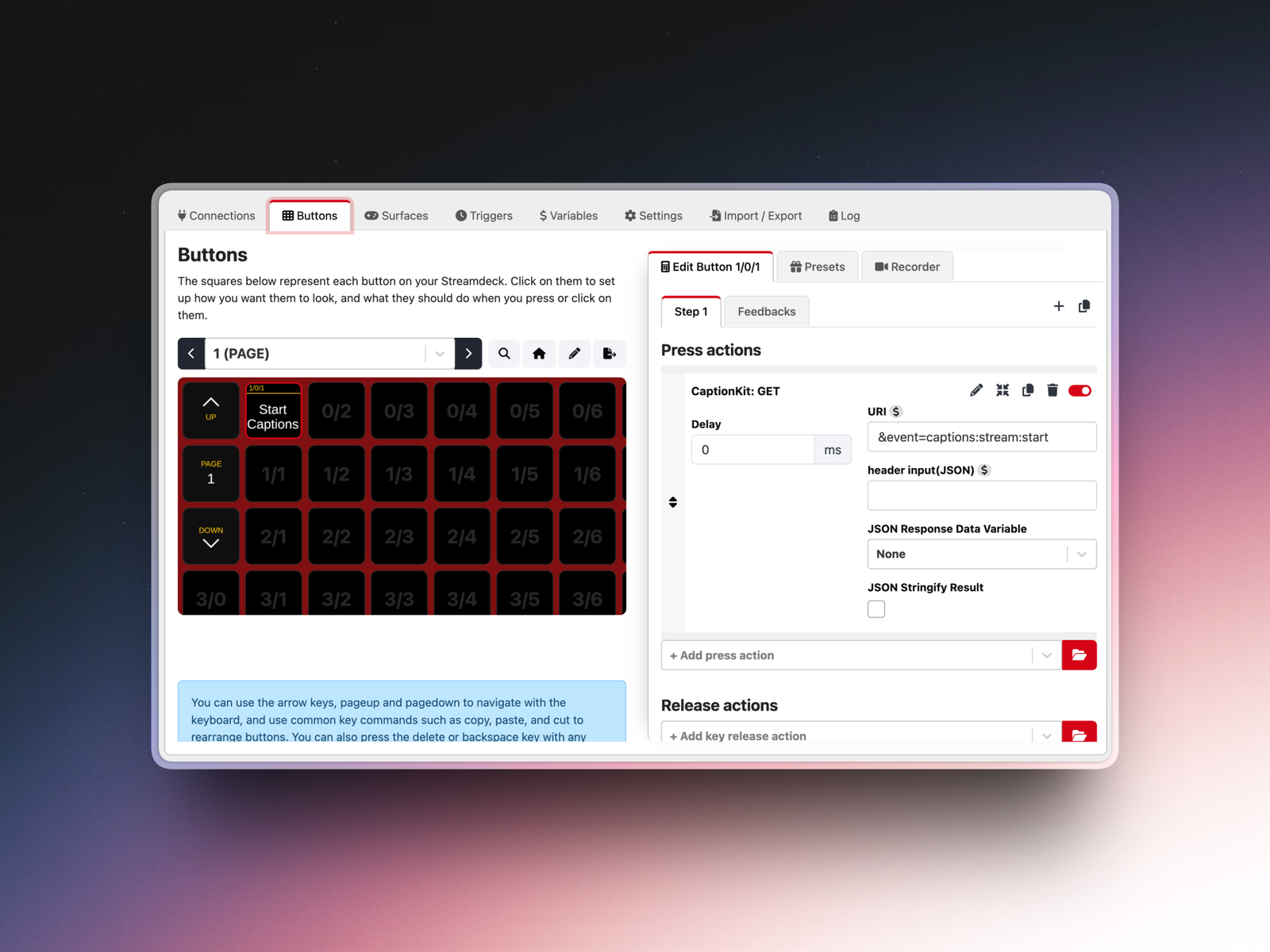
Once CaptionKit is connected, you can create Companion buttons for common actions like starting and stopping your caption stream.
For a simple setup, that might mean having dedicated Start Captions and Stop Captions buttons on your Stream Deck.
For more advanced workflows, CaptionKit can sit alongside your other Companion actions and be incorporated into the same buttons and sequences you're already using to run your service.
Either way, it means less jumping between windows and faster access to CaptionKit when you need it.
See when your captions are live
CaptionKit also supports live status feedback in Companion, so your Stream Deck can show whether your caption stream is currently running.
This is especially handy if you regularly pause captions during parts of a service. For example, you might stop the caption stream during worship and restart it when the message begins.
With status feedback on your Stream Deck, you can see at a glance whether CaptionKit is currently live, making it much harder to forget to switch those captions back on!
Getting connected
Setting up CaptionKit in Companion is straightforward:
- Create or copy your CaptionKit API key.
- In Companion, install the CaptionKit: API module.
- Add CaptionKit as a connection and enter your API key.
- Create a button and add a CaptionKit action.
- Choose the action you'd like that button to trigger.
From there, you can build out your controls to suit your production workflow, from a couple of dedicated caption buttons to a more advanced Companion setup. See our full Companion set up guide here.
Building something custom?
CaptionKit's API also includes an endpoint for checking your current streaming status.
That means status isn't limited to Companion. If you're building your own integration or automation, you can query CaptionKit to determine whether a caption stream is currently running and use that status within your own workflow.
Whether you're using Companion and Stream Deck or building something of your own, it's another way to make CaptionKit fit neatly into your existing production setup.